# Custom Dictionary

### **Custom Dictionary change**

If you load Microsoft Word. (The Custom Dictionary will change for all)

Then select file and then “options” from the left hand pop out pane

<span style="mso-no-proof: yes;">![A screen shot of a computer

AI-generated content may be incorrect.](https://wiki.safetynet-it.com/uploads/images/gallery/2025-07/SrwrPptPlxENgtaQ-embedded-image-avwhf5r4.jpeg)</span>

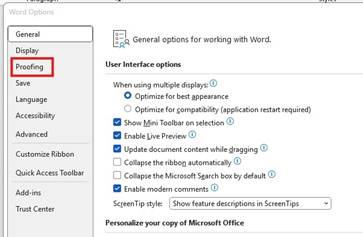
When options windows loads, select proofing
<span style="mso-no-proof: yes;">![A screenshot of a computer

AI-generated content may be incorrect.](https://wiki.safetynet-it.com/uploads/images/gallery/2025-07/v9ykWneZZ58Ku5F9-embedded-image-haxc4s6s.jpeg)</span>

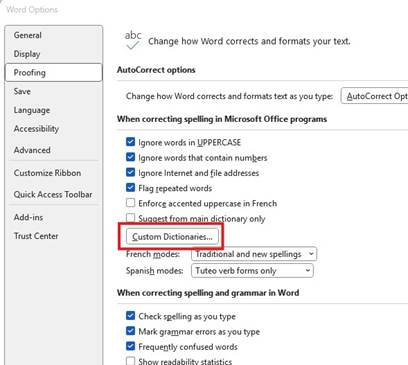
Under proofing you can select Custom Dictionaries
<span style="mso-no-proof: yes;">![A screenshot of a computer

AI-generated content may be incorrect.](https://wiki.safetynet-it.com/uploads/images/gallery/2025-07/iOat6cpQp4E11xOI-embedded-image-c9akgi5n.jpeg)</span>

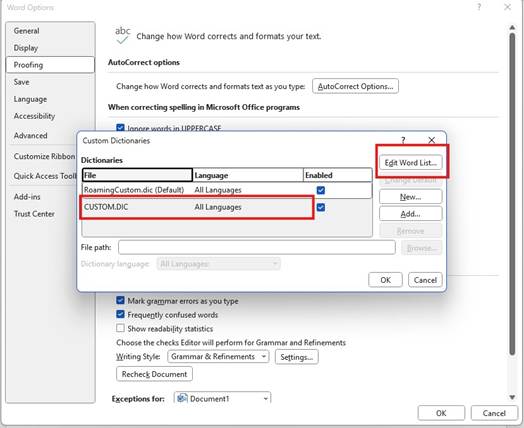
Within Custom Dictionaries select the CUSTOM.DIC and then select edit word list.
<span style="mso-no-proof: yes;">![A screenshot of a computer

AI-generated content may be incorrect.](https://wiki.safetynet-it.com/uploads/images/gallery/2025-07/CKQpHMdG74R7AJWN-embedded-image-ed64awyi.jpeg)</span>

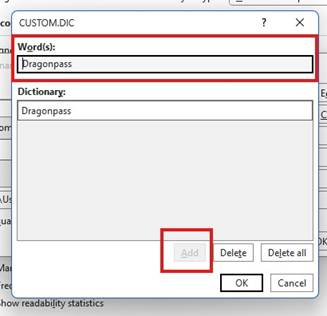
In the pop out add “Dragonpass”

<span style="mso-no-proof: yes;">![A screenshot of a computer

AI-generated content may be incorrect.](https://wiki.safetynet-it.com/uploads/images/gallery/2025-07/U4NBXhdEcX1atRB4-embedded-image-p58apsvl.jpeg)</span>