Misc
- How to add a password to zip / 7zip
- Device Migration to Intune Process (User experience)
- Setting up Draytek Vigor 2927Lax-5G Router out of the box (for 5G connections)
How to add a password to zip / 7zip
You will need 7zip installed first.
Highlight and right click the files and add to an archive like the attached.

When you add to an archive, make sure it's set to ZIP and you can add a password.
This will allow the end user to open the files using the built in Windows zip app and enter the password.

Device Migration to Intune Process (User experience)
The entire process to migrate your device to Intune is fully automated and should take around 5-10 minutes.
Step 1 - Migration Starts
Once the process starts you will be logged out of your profile and the device will reboot, so it is important to save any work before the migration window. This is fully driven by IT systems do you do not need to do anything to start this process.

Step 2 - Post Reboot
You will be greeted with some information to say the migration was completed, press OK and wait 30 seconds for the logon screen to timeout (as some final tasks are happening int the background).

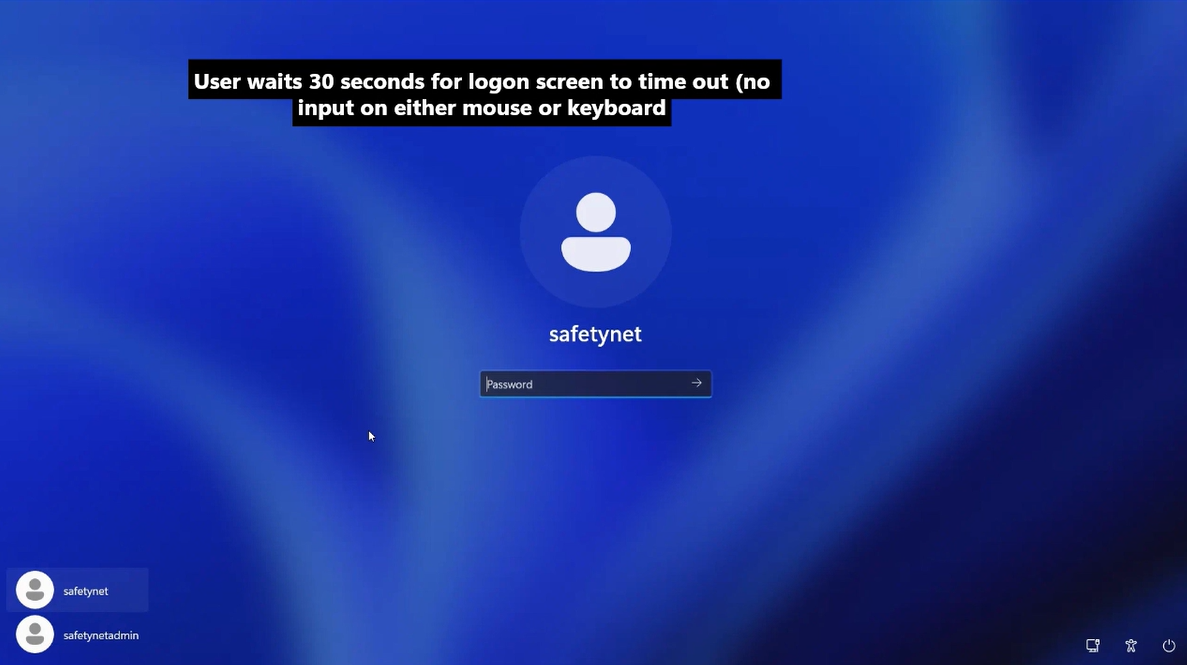
Step 3 - Login
You can then login to your profile once more but this time using your work email address and password.
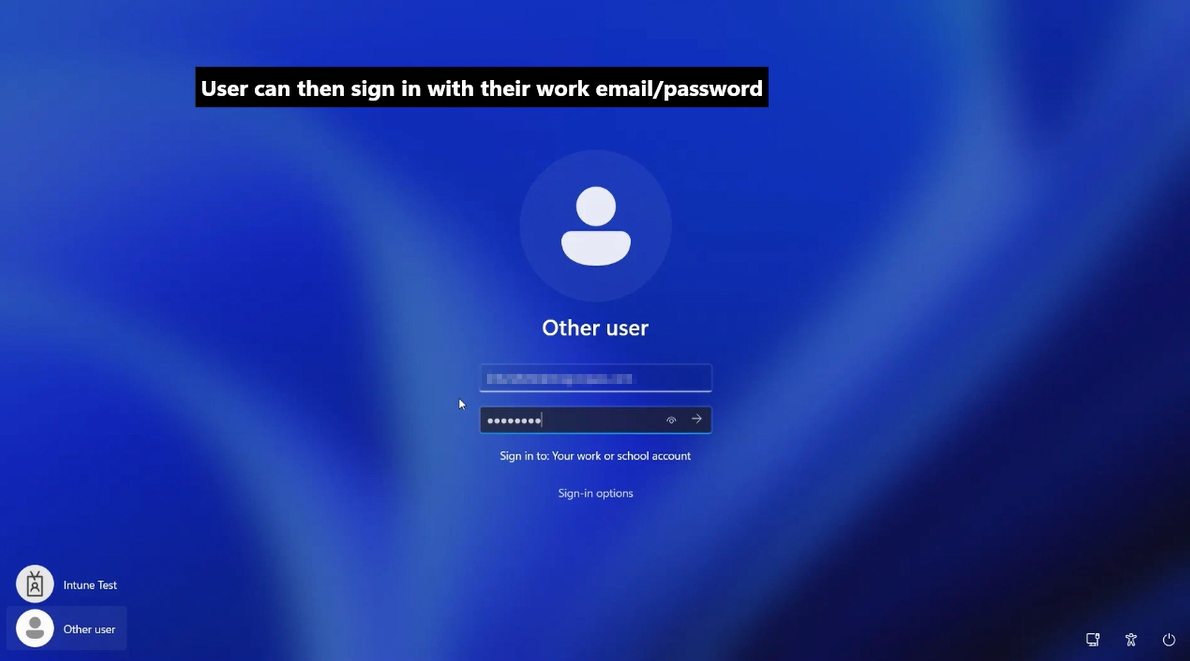
Your profile will then begin migrating.
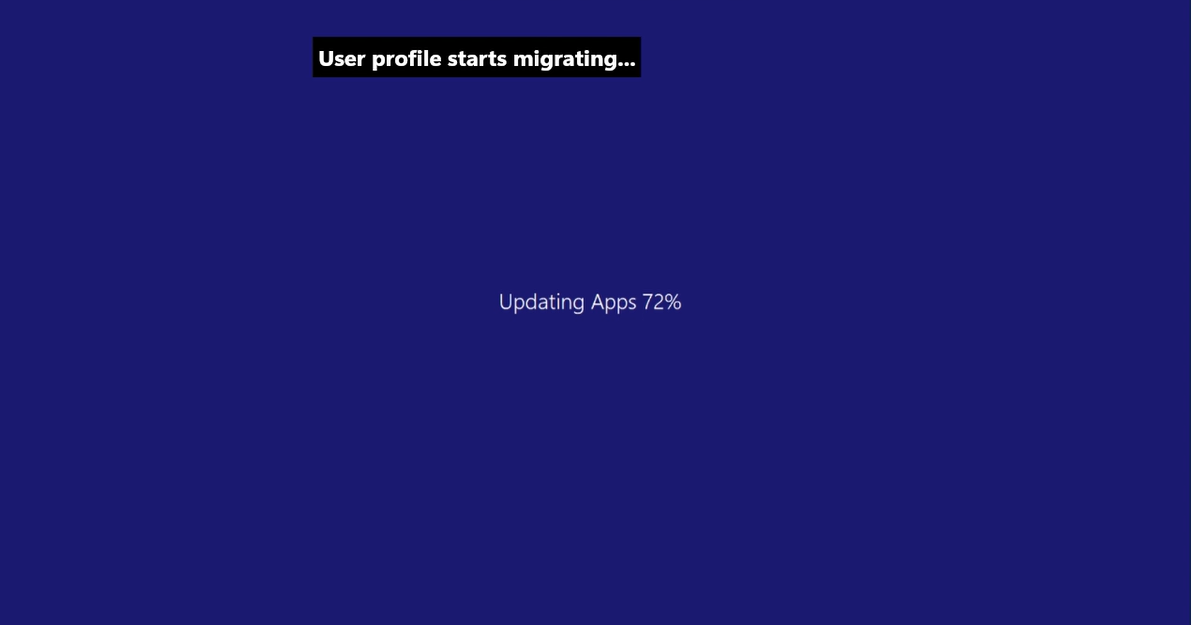
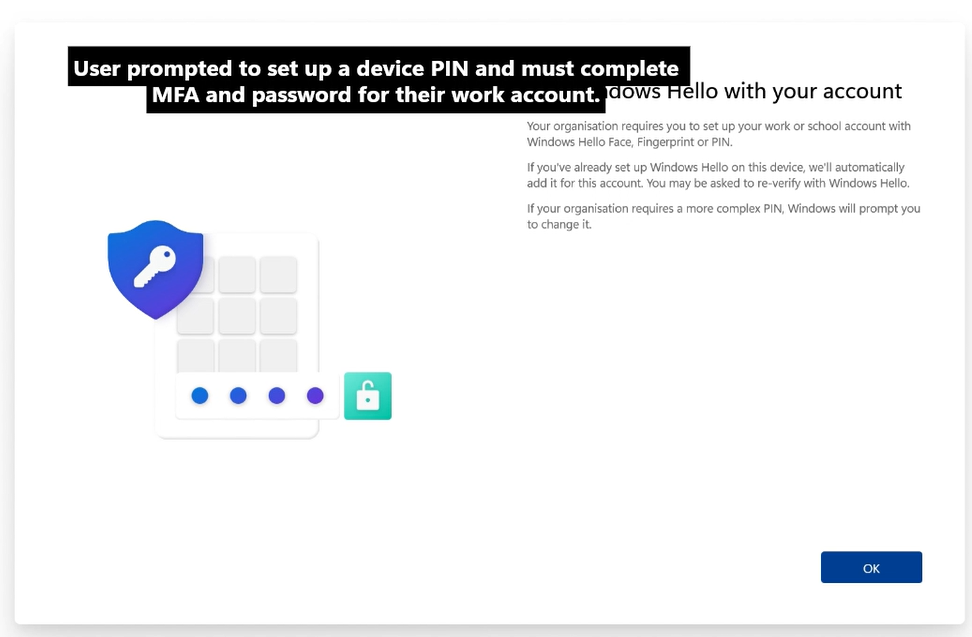
Step 4 - Set up Windows Hello
Please only try and set up a PIN at this time. You will encounter an error when trying to set up fingerprint or Facial recognition, please skip the option and if any errors occur ignore and skip them. You may set up facial recognition after this migration process.
You will then be asked to set up Windows Hello which invites you to create a unique PIN, Fingerprint or facial recognition to log you into the device, in this case we are using PIN.
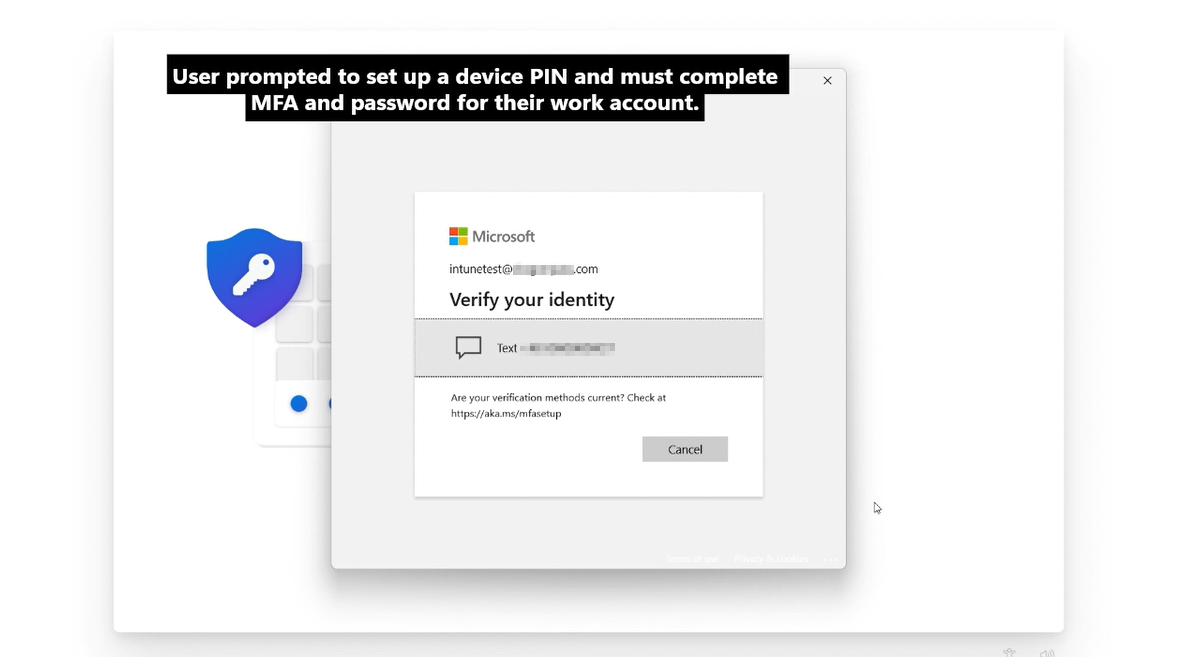
You will then be asked to confirm your identity using Multi Factor Authentication.
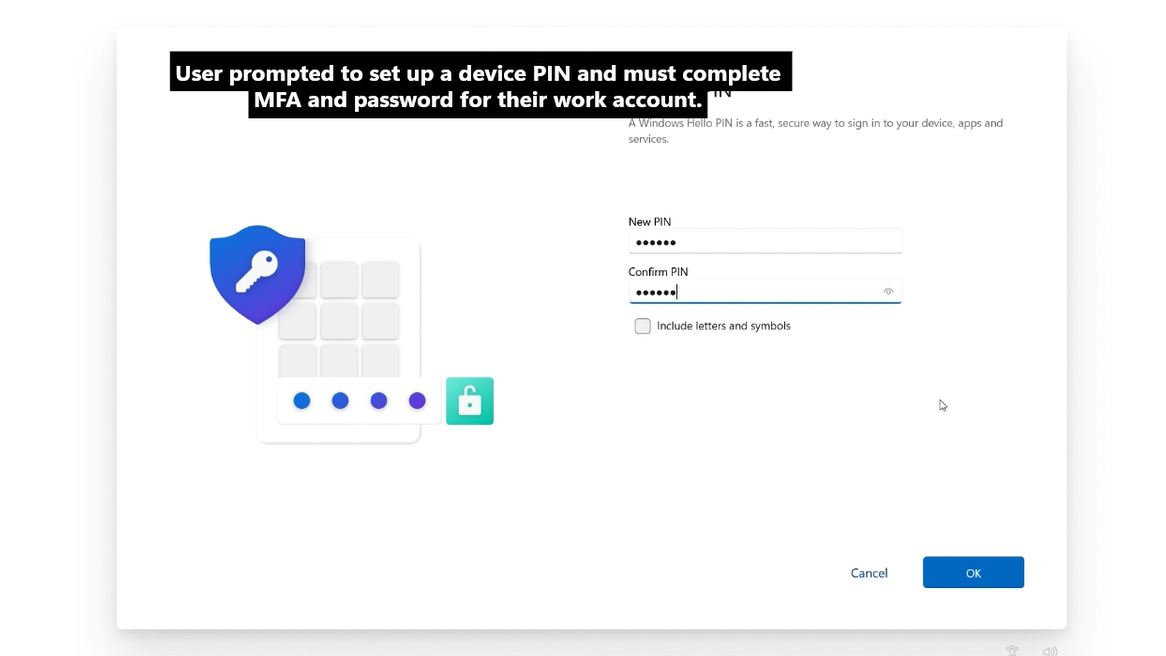
And finally create a device PIN, this will then be the primary option for when logging into your computer.
Step 5 - Completed
After this stage you will then be logged back into your usual profile, with your apps, settings and files as usual.
Future logins to your device can now be done with the PIN you just created, or using your email password.
Please Read! Known issues:
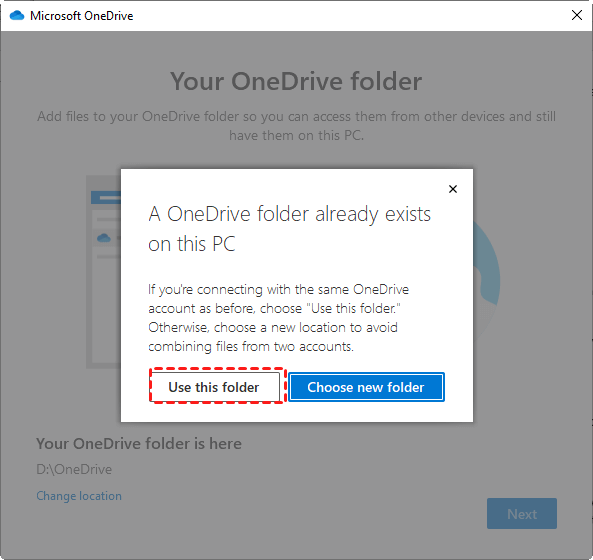
You are signed out of OneDrive
Upon opening up the OneDrive application, sign back in with your email and password, and if prompted where to save files choose "Use this folder".
Setting up Draytek Vigor 2927Lax-5G Router out of the box (for 5G connections)
Installing the SIMs
To install a SIM unscrew the SIM slot on the rear of the device
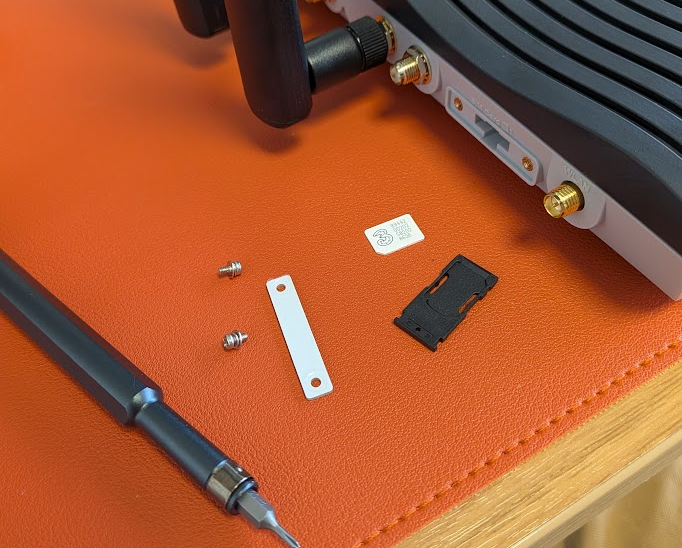
The SIM tray has two slots, slot one is above, install as below
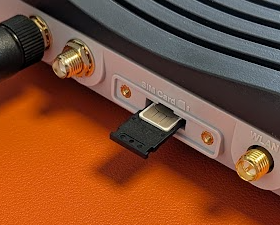
SIM in tray (SIM 1 position)
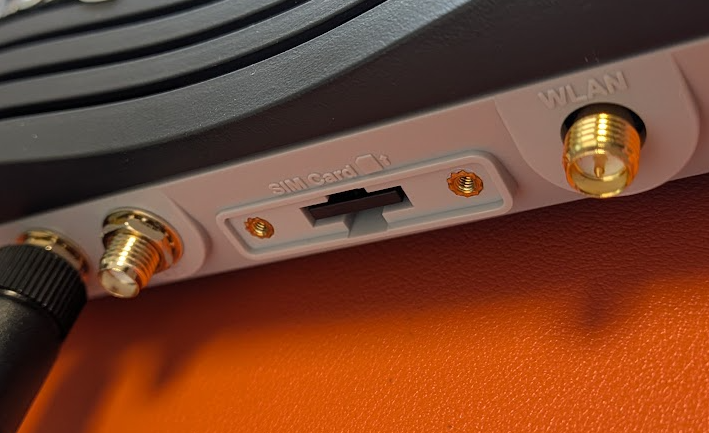
SIM tray properly clicked into place
Installing the antennas
There are six antenna's in the box
2 x Wifi Antennas (2.4g/5g)
4 x 5G Antennas
4 x Magnetic 5G Antenna extenders
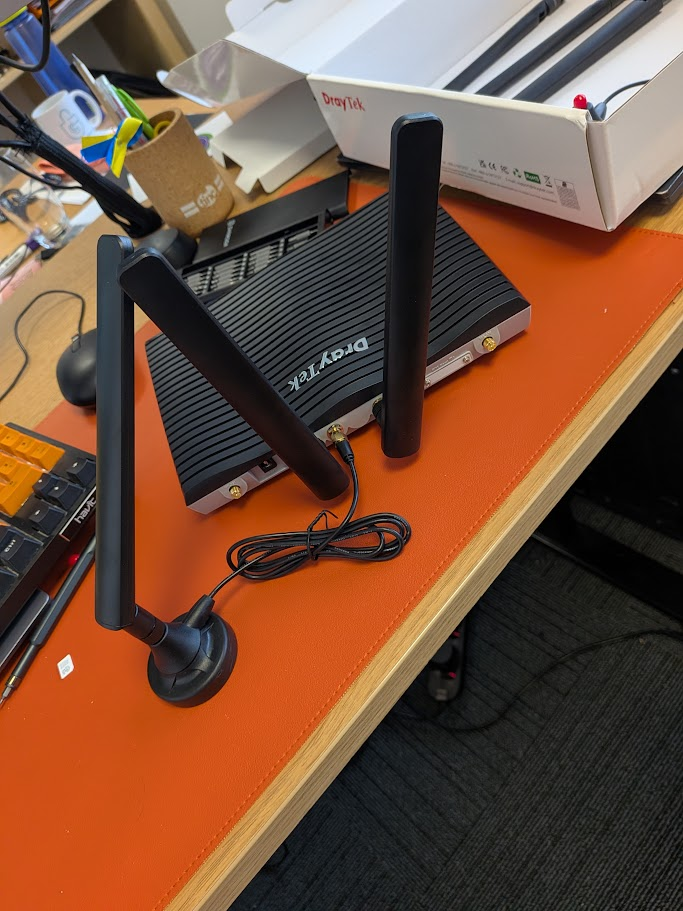
It is usually sufficient to install two directly to the Draytek on the 1st and 3rd slot of the middle 4 connectors.
If you are in area with low signal you can use the magnetic extender mounts optionally too (see a possible config below)