# Office365
How to enable email forwarding to a colleague via Office 365 self-service portal.
# Office365 How To Forward using OWA Outlook O365
Log into [**office.com**](https://office.com) using your email and password.
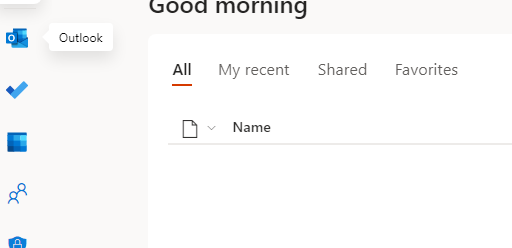
Open **Outlook** on the left:
[](https://wiki.safetynet-it.com/uploads/images/gallery/2021-07/5b9VMDmfFE3puByM-image-1625222628245.PNG)
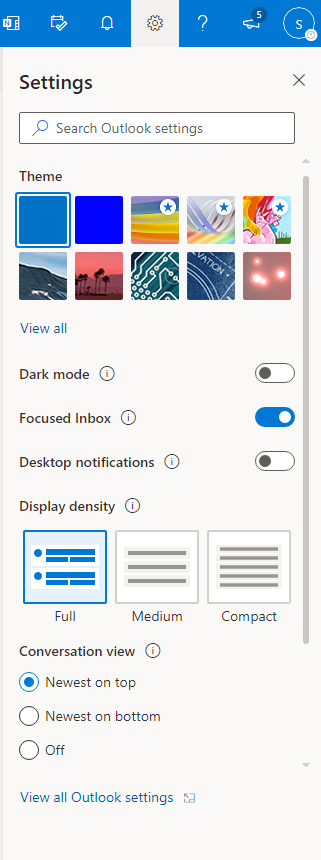
Click the **Cog** symbol in the top right and select **Settings**:
[](https://wiki.safetynet-it.com/uploads/images/gallery/2021-07/w84LB9VEnSjD6OaK-image-1625222638802.PNG)
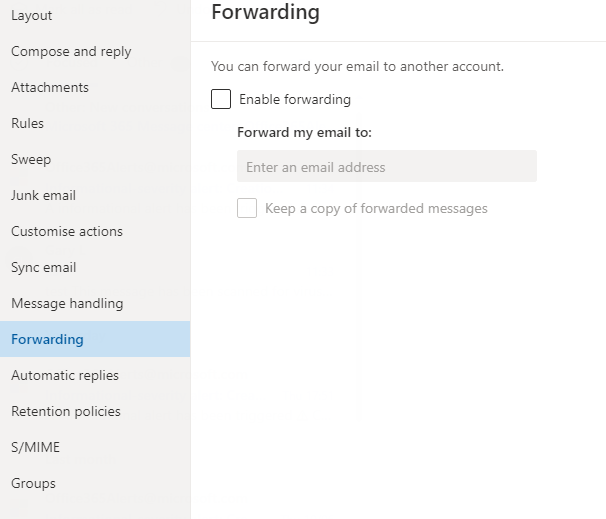
On the left click **Forwarding** and set up the forward.
Check keep a copy if you wish to receive a copy and forward the email.
[](https://wiki.safetynet-it.com/uploads/images/gallery/2021-07/TKzjVIQQT3PKiJ3y-image-1625222655497.PNG)
# Multi-Factor Authentication Setup User Guide
To enable MFA you need a mobile device with a camera that is capable of installing an application (i.e a smart phone or tablet). This will be used to authenticate you when logging in so it must be a device you regularly have access to.
Go to **[https://aka.ms/mfasetup](https://aka.ms/mfasetup)** in a web browser
[](https://wiki.safetynet-it.com/uploads/images/gallery/2022-02/EyWGfU8yNoGgpRZm-image-1644337765429.PNG)
Log in using your **365 account details.** This will be your primary work **email** and **password.**
[](https://wiki.safetynet-it.com/uploads/images/gallery/2022-02/1Oq22CyMzc3Mdsnz-image-1644338077548.PNG)
You will then be prompted to set up your Multi-Factor sign in method, click **next**.
[](https://wiki.safetynet-it.com/uploads/images/gallery/2022-02/I9lPubOiT53AtcR0-image-1644338241410.PNG)
You will then be prompted to then download the **Microsoft Authenticator App** on your mobile device.
[](https://wiki.safetynet-it.com/uploads/images/gallery/2022-02/OkY2MowtvVdP15Ct-image-1644338256139.PNG)
Follow the prompt within the app to add an account, or if you already have the app click the 3 dots in the top right and choose **add account** then **work or school**.
You will then be prompted to scan the QR code shown on your screen with your mobile device's camera. Click **next**.
[](https://wiki.safetynet-it.com/uploads/images/gallery/2022-02/EX7DD7wKwTbhw0dp-image-1644338336954.PNG)
Now a notification on your mobile device will ask you to approve the sign in, click **approve** when the prompt appears on your mobile device.
[](https://wiki.safetynet-it.com/uploads/images/gallery/2022-02/EAapJqORMKaiFhMV-image-1644338343348.PNG)
Then back in the web browser click **next**.
[](https://wiki.safetynet-it.com/uploads/images/gallery/2022-02/gZt44ur2Lan74GQ4-image-1644338349227.PNG)
[](https://wiki.safetynet-it.com/uploads/images/gallery/2022-02/CaoqrTWqlJNiC6eb-image-1644338354122.PNG)
You have now set up Multi-Factor Authentication for your account. This will prompt you any time a new login is detected for your account.
# How to sync a SharePoint Online document library to a local machine
*This article will detail how to make shared files in SharePoint available in file explorer.*
#### Before you start
The requirements for this process to work are
- Access to office.com using 365 email and password credentials.
- Access to the required SharePoint site already via the office.com portal.
- OneDrive client installed on the local machine and signed in already.
##### 1. Browse to the sharepoint site required in a web browser.
An example URL could be [https://yourcompany.sharepoint.com/sites/accounts](https://yourcompany.sharepoint.com/sites/accounts)
OR
Access via the Office 365 portal > https://office.com > Sharepoint > Select the Sharepoint site.
##### 2. Once at the site head to **documents** and then choose **sync**.
[](https://wiki.safetynet-it.com/uploads/images/gallery/2022-07/cmFimjT2gOobkhq9-image-1657190986576.png)
[](https://wiki.safetynet-it.com/uploads/images/gallery/2022-07/wAj39ZPS7eIK9OSq-image-1657190990641.png)
##### 3. This will produce a prompt for you to allow this site to sync using the locally installed onedrive client.
Choose **Open Microsoft OneDrive.**
[](https://wiki.safetynet-it.com/uploads/images/gallery/2022-07/DLuXbnvNhEnUVO9L-image-1657190997751.png)
[](https://wiki.safetynet-it.com/uploads/images/gallery/2022-07/aKnjXzqnEIc9fcKd-image-1657191003234.png)
##### 4, Open **file explorer** to confirm data is synced.
The newly synchronized site data will be available under the SharePoint icon, a blue office icon.
[](https://wiki.safetynet-it.com/uploads/images/gallery/2022-07/HiKkWsRq1ofgzehI-image-1657191017124.png)
##### Repeat this step with other SharePoint sites for any additional data required.
# Sign into Onedrive
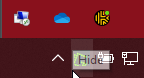
Open the **OneDrive** **App**, it should be a blue (or gray if not signed in) cloud in the bottom right of your task bar.
[](https://wiki.safetynet-it.com/uploads/images/gallery/2023-06/lFtC8jlEJDCB5hsE-image-1685624276587.png)
If you do not see it please search for it in the start menu, else if you need to install it as it is not there please do so at [https://www.microsoft.com/en-gb/microsoft-365/onedrive/download](https://www.microsoft.com/en-gb/microsoft-365/onedrive/download)
[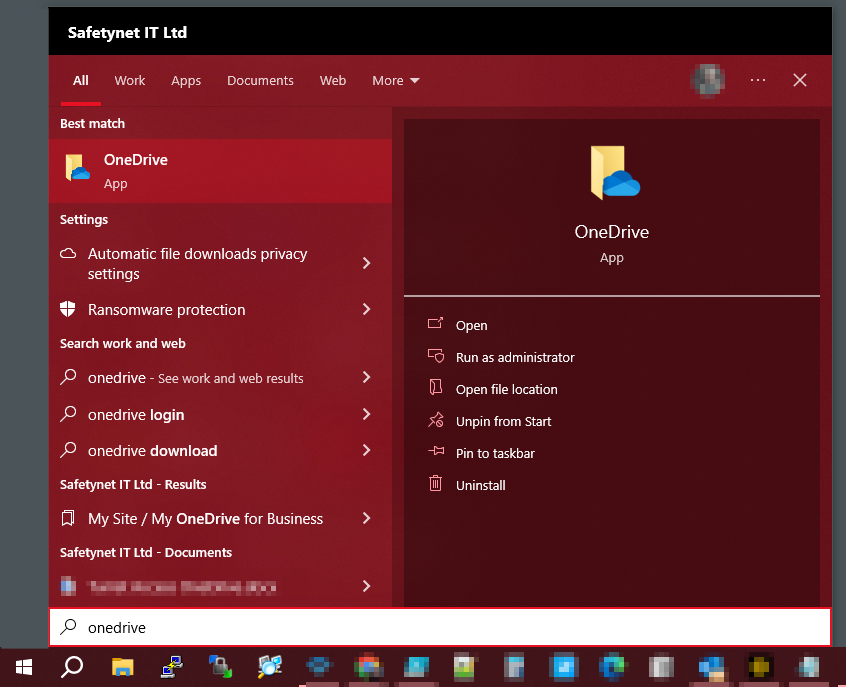](https://wiki.safetynet-it.com/uploads/images/gallery/2023-06/ezg0zkiKwqZWQId3-image-1685623459595.png)
You will then be asked to sign in, this is your work email and password. And if asked please choose "**work or school**" not personal.
[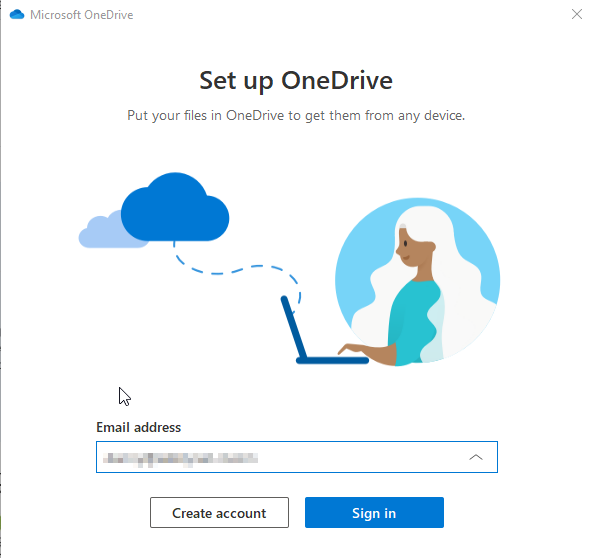](https://wiki.safetynet-it.com/uploads/images/gallery/2023-06/sf5bUGsqsltq1Bun-image-1685623586305.png)
Then just hit **next** or **done** until the prompts have all disappeared.
# Sharing a SharePoint Folder with an external person.
This guide explains how to share a SharePoint folder with an external person using email initiation. The recipient will log in using a one-time code.
---
## 1. Locate the Folder and Initiate Sharing
- Navigate to the SharePoint site where the folder is located (e.g https://mycompany.sharepoint.com/sites/mysite)
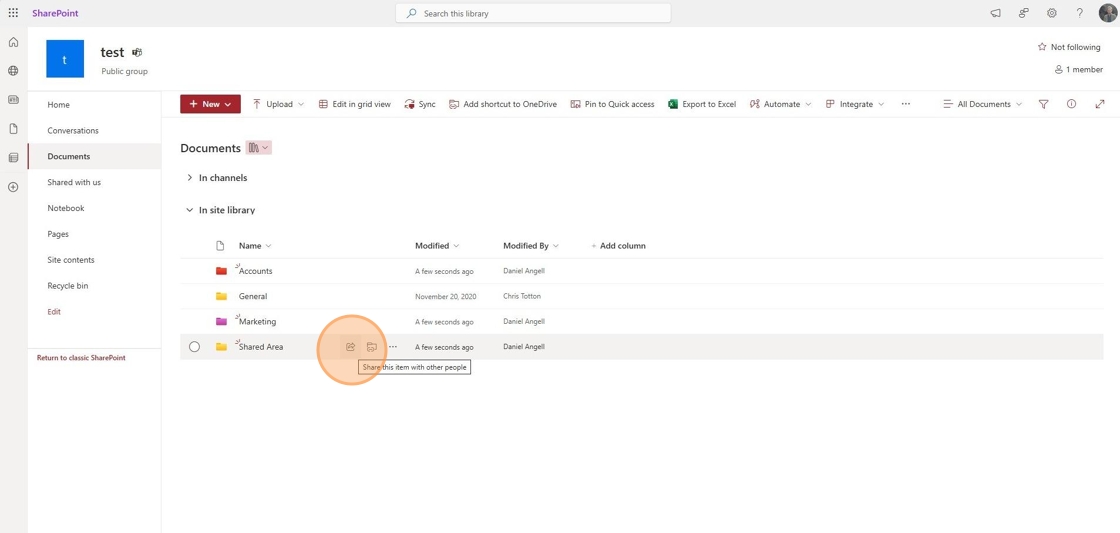
- Find the folder you wish to share and click **"Share this item with other people."**
📌 **Note**: The external person will only have access to this folder and its subfolders.
---
## 2. Enter the External Person’s Email Address
- Type in the email address of the external person(s) you wish to invite.

---
## 3. Confirm the Invitation
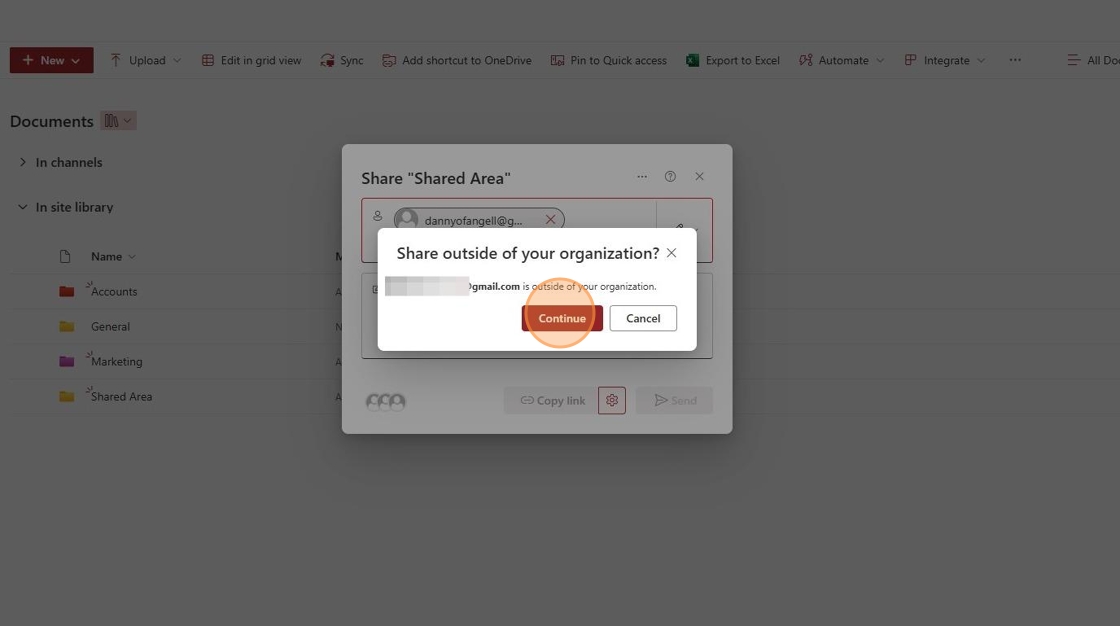
- You will receive a warning prompt to confirm the invitation for the external person.
📌 **Note**: Some organizations have policies that restrict external sharing. If you encounter issues, raise a ticket at .
---
## 4. Set Sharing Permissions
- Click the ✎ to adjust permissions:
- **Can Edit**: Allows the person to read and modify files.
- **Can View**: Allows viewing and downloading files.
- **Can't Download**: Allows viewing but prevents downloading copies.

---
## 5. Send the Invitation
- You can write an optional message before sending the invitation.
- Choose **Send an email** to notify the person or **Copy a link** to share manually.
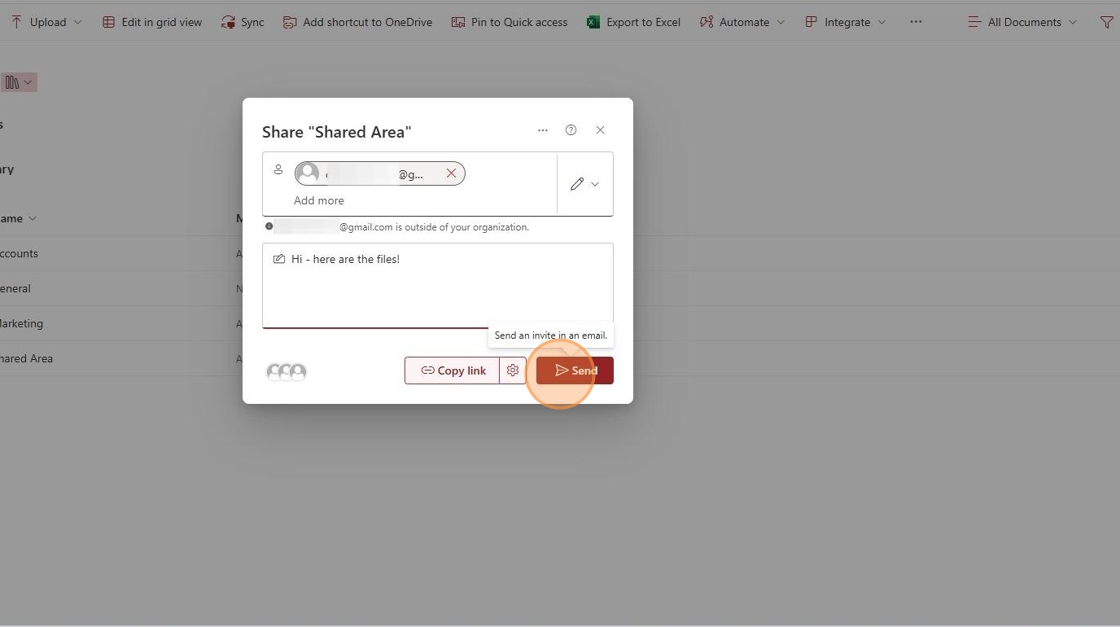
---
## 6. Recipient Receives the Invitation
- The external person will receive an email with a link to access the shared folder.
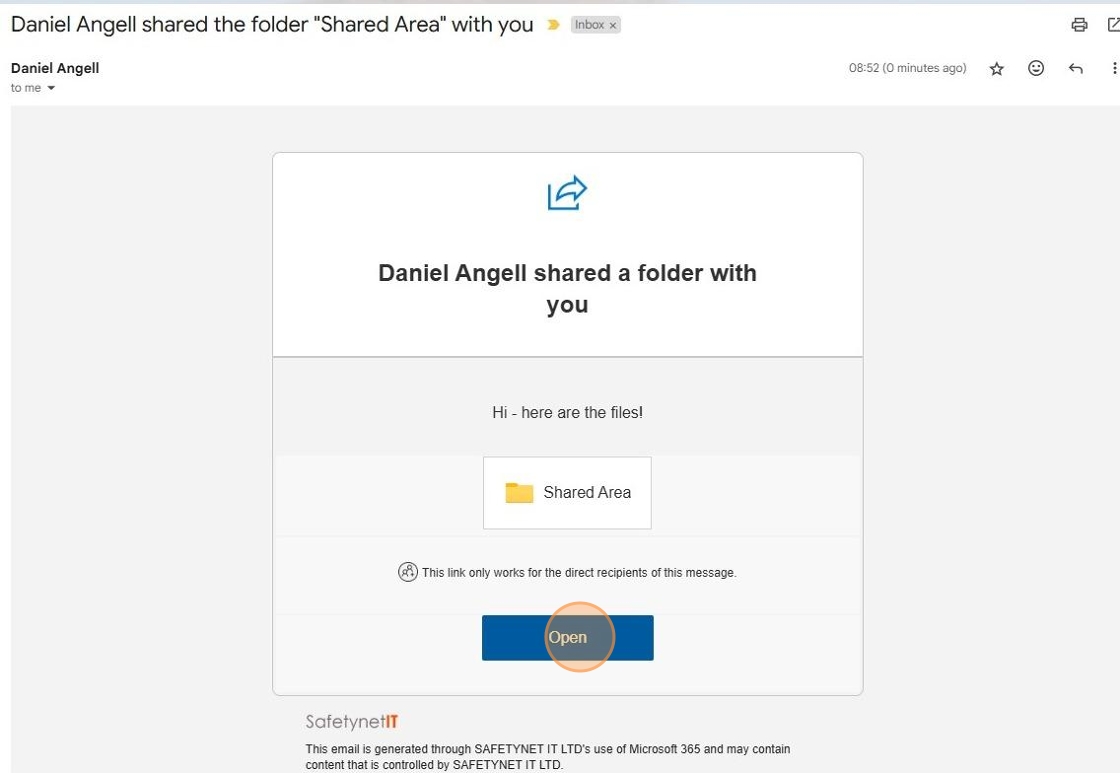
---
## 7. One-Time Code Authentication
- The recipient will be prompted to request a **one-time code** sent to their email.

---
## 8. Enter the Verification Code
- They will receive a code via email.
- They must enter the code into the prompt in their browser.

---
## 9. Access Granted
- Once verified, they can access the folder.
- They can revisit the link anytime to access the shared files.

---
# Testing login credentials for Microsoft Accounts
Microsoft accounts are a single identity used to authenticate to many different services, such as the Microsoft 365 portal, Teams, Office apps, Email, Computer logins etc...
#### **Confirming credentials**
This will:
- Confirm username/password combination is correct.
- Confirm Multi Factor Authentication methods are working.
#### **Process**
Browse to the Microsoft 365 user portal
- [https://m365.cloud.microsoft.com/](https://m365.cloud.microsoft.com/)
Log in with your username and password combination, this will be formatted as an **email address** and **password**.
[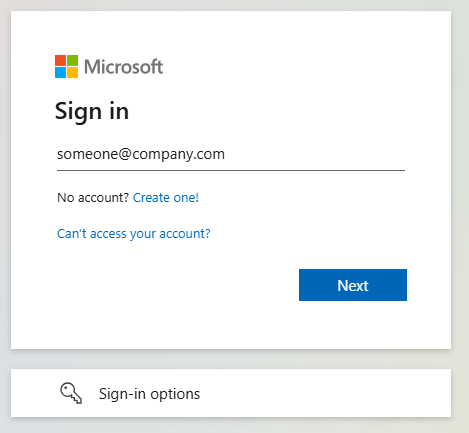](https://wiki.safetynet-it.com/uploads/images/gallery/2025-05/x6xHOxlkjdZ45Mq3-image.png)
Pass any **Multi-Factor Authentication** prompts that appear.
[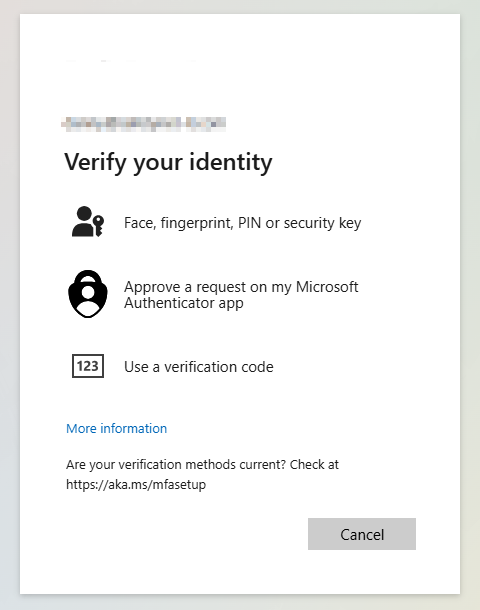](https://wiki.safetynet-it.com/uploads/images/gallery/2025-05/mTuDBflRbMaGFZR0-image.png)
You should now be successfully signed into your Microsoft account in the Microsoft 365 Portal.
**If you cannot log in**
- Are not sure of your username or password
- Could not pass Multi-Factor Authentication
**Please raise a ticket to us** via our help desk:
- ****
- **+44 333 305 8224**
# Opening and Logging into Office Apps (desktop)
**Microsoft 365** includes several desktop apps **if you have the correct licence**, which means your **company Microsoft account** gives you access to apps like Outlook, Word, Excel, and Teams.
---
### 🔍 Step 1 — Open the App
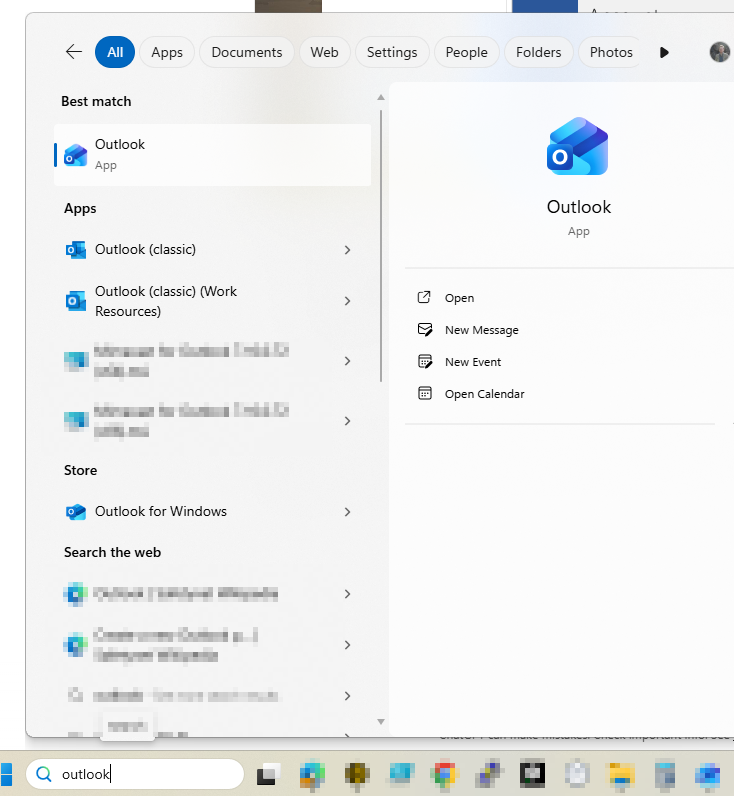
1. Click the **Start Menu** (bottom-left corner of your screen).
2. Begin typing the name of the app — for example:
- `Outlook` for email
- `Word` for documents
- `Excel` for spreadsheets
- `Teams` for chat and meetings
3. When the app appears, click it to open.
[](https://wiki.safetynet-it.com/uploads/images/gallery/2025-10/EQBhQedK4V3THl19-image.png)
### 🔑 Step 2 — Sign In with Your Company Account
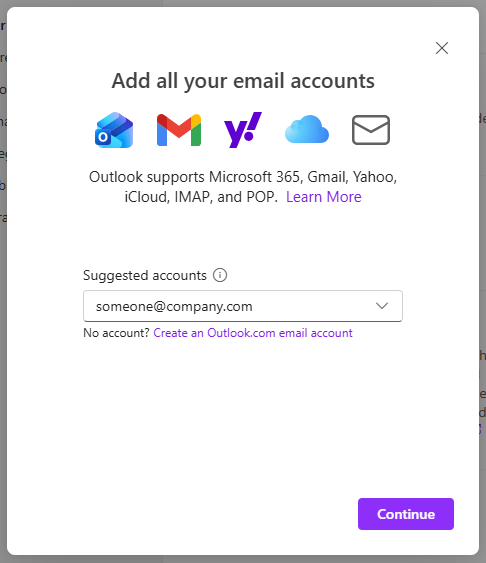
When the app opens for the first time, you’ll be asked to **sign in**.
1. Enter your **company email address** (for example: `firstname.lastname@companyname.com`)
2. Click **Next** or **Connect**.
3. Enter your **password** when prompted.
4. If you’re asked for **Multi-Factor Authentication (MFA)**, follow the instructions on your phone.
5. Once complete, the app will open and you’re signed in.
*Example: Outlook Sign-in page*
[](https://wiki.safetynet-it.com/uploads/images/gallery/2025-10/HAAht4Sb6m9vDfau-image.png)