Safetynet IT
- How to install Safetynet IT Remote Support
- Remote support with a code
- Contact the helpdesk
- Accessing the customer portal
- Customer Portal: Onboarding new users
How to install Safetynet IT Remote Support
Go to
https://remote.safetynet-it.com/
Click the arrow to Build Installer

Add in the Company and click Download:

This will download the file to install. Open and install it:

Remote support with a code
Go to https://remote.safetynet-it.com

Enter the code and click the arrow the right:
Double click Save:

Launch the app:

Contact the helpdesk
If you need help or wish to raise a support request, you can contact the SafetyNet IT team using any of the methods below.
Send us a message at
support@safetynet-it.com
This will automatically create a support ticket, and one of our engineers will respond as soon as possible.
☎️ Phone
Call us on (+44) 0333 305 8224
🕗 Available Monday to Friday, 8:30 AM – 5:00 PM
If your issue is urgent (for example, you cannot log in or access business-critical systems), please call rather than email.
🌐 Support Portal
If you have a portal account, you can log in to:
👉 https://service.safetynet-it.com/portal/home
From the portal you can:
-
Raise new tickets
-
View updates on existing tickets
-
Review your company’s open requests
Accessing the customer portal
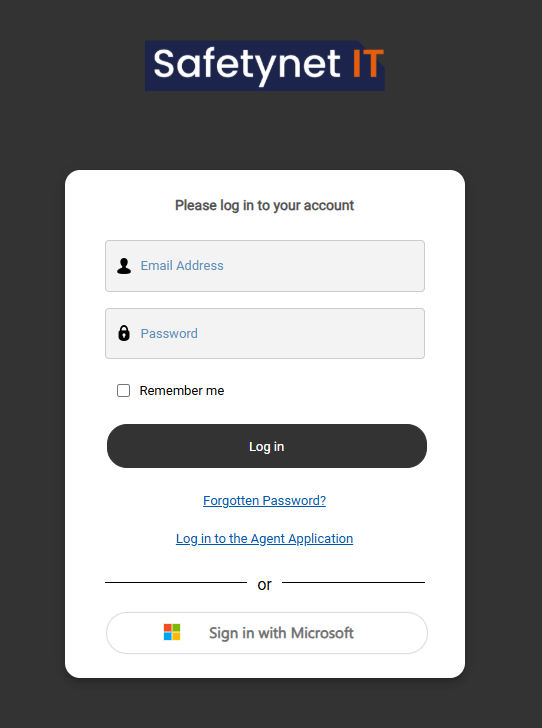
Logging in
Access the customer portal at:
https://service.safetynet-it.com/portal/home
You can sign in using either:
-
Single Sign-On (SSO) with Microsoft 365, or
-
An email address and password
If you are unable to log in, please raise a support ticket by emailing or calling the help desk.
Using the portal
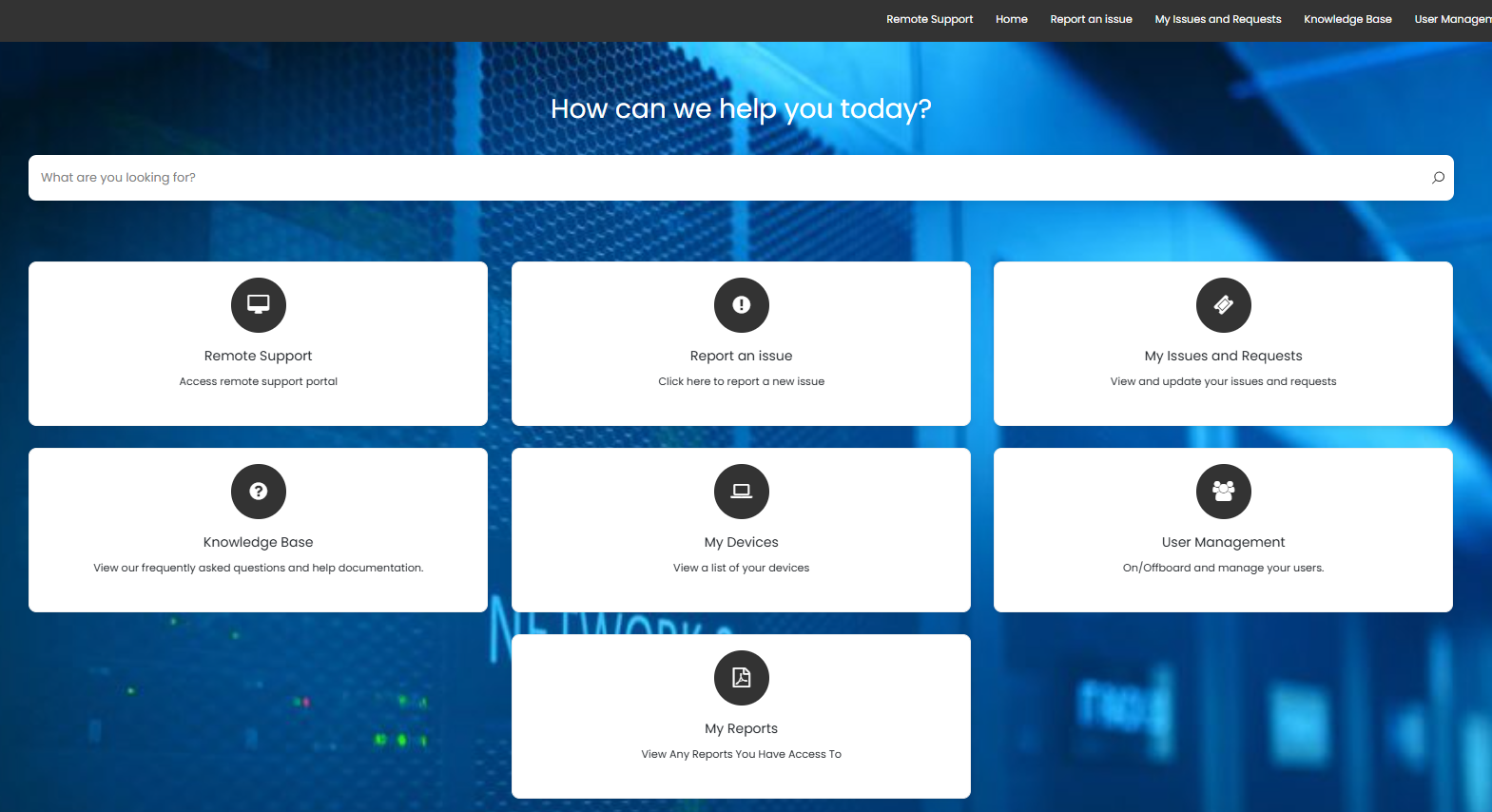
Once logged in, you can perform a range of actions depending on the level of access assigned to your account. These may include:
-
Raising a new support ticket
-
Viewing and tracking your open tickets
-
Accessing available reports
-
Viewing device and asset lists
-
Submitting special requests such as staff onboarding or offboarding (onboarding and offboarding guides)
The options and data visible to you are based on your permissions.
Customer Portal: Onboarding new users
Onboarding a new employee
-
Log in to the portal
-
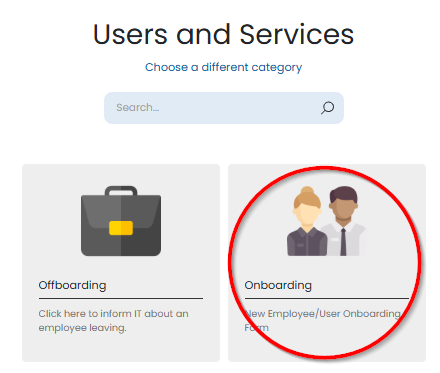
Navigate to User Management
-
Select Onboarding
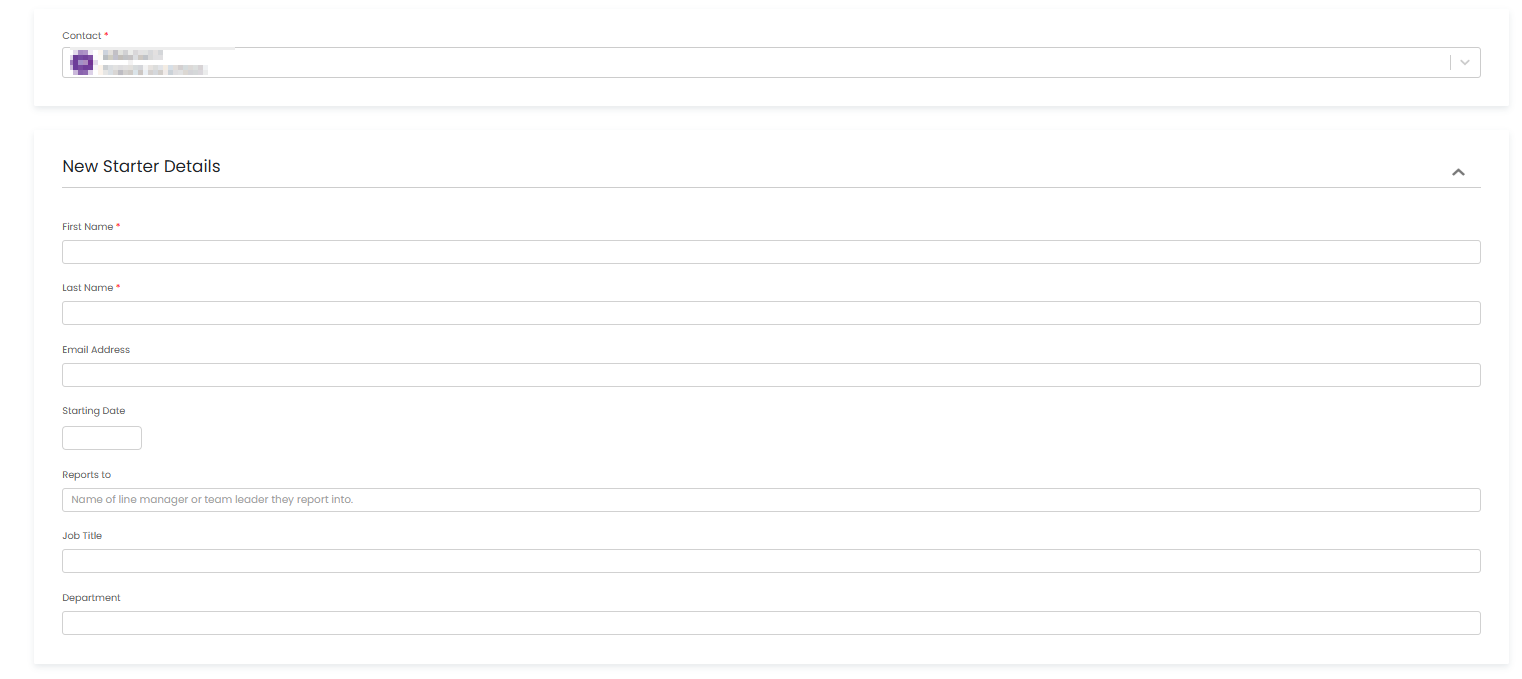
You will be presented with a form to capture details for the new employee.
-
Some fields are mandatory
-
Other fields are optional and can be used to provide additional information or special requests
You can also request:
-
New hardware
-
Software access
-
Any other requirements the user needs before their start date
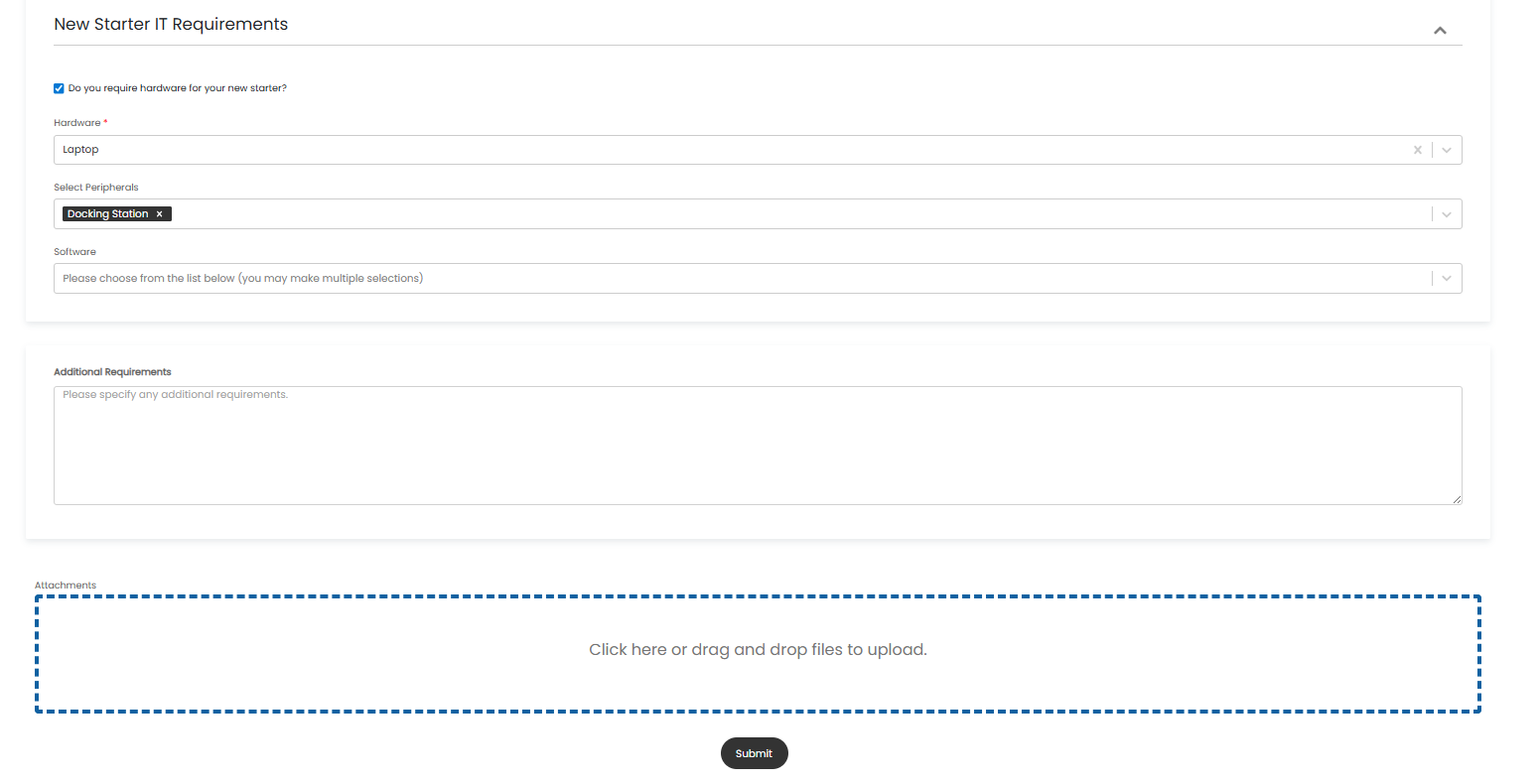
Once all information has been completed, select Submit.
This will automatically raise a support ticket, and our support team will begin processing the request.
Important: Please submit onboarding requests as early as possible. Requests submitted within 72 hours of a user’s start date may not be processed in time.